

Using 胖狐中转 in Jan
Jan is an offline-first open-source AI desktop client that can both run models locally and connect to OpenAI-compatible endpoints through the Remote Engine. This article explains how to connect to 胖狐中转.
¶ Application Process
To connect to 胖狐中转 in Jan, first go to the 胖狐中转 Console, obtain your API Token, and keep it for later use.

If you have not logged in or registered yet, you will be automatically redirected to the login page to register and log in. After logging in or registering, you will automatically return to the current page.
Free credits are provided with your first application, allowing you to try 胖狐中转's model services for free.
¶ Download Jan
Go to the Jan official website and download it for your platform (Windows, macOS, Linux). For Apple Silicon devices, download the arm64 package for the best performance.
¶ Configure 胖狐中转
Jan divides models into Local Engine (running locally) and Remote Engine (third-party APIs). 胖狐中转 uses the OpenAI-compatible protocol and is connected through the Remote Engine.
Open Jan, go to Settings → Model Providers, find the OpenAI card and edit it:
| Field | Value | Description |
|---|---|---|
| API Key | Your 胖狐中转 Token | The Token copied from the console |
| Base URL | https://api.ace.324567.xyz/v1 |
Must end with /v1, without a trailing slash |
The requirement that the Base URL must end with
/v1is an explicit convention in Jan's official documentation. If you do not want to overwrite the original OpenAI configuration, you can use "+ Add Provider" to create a new Provider of typeopenai-compatibleand fill in the same content.
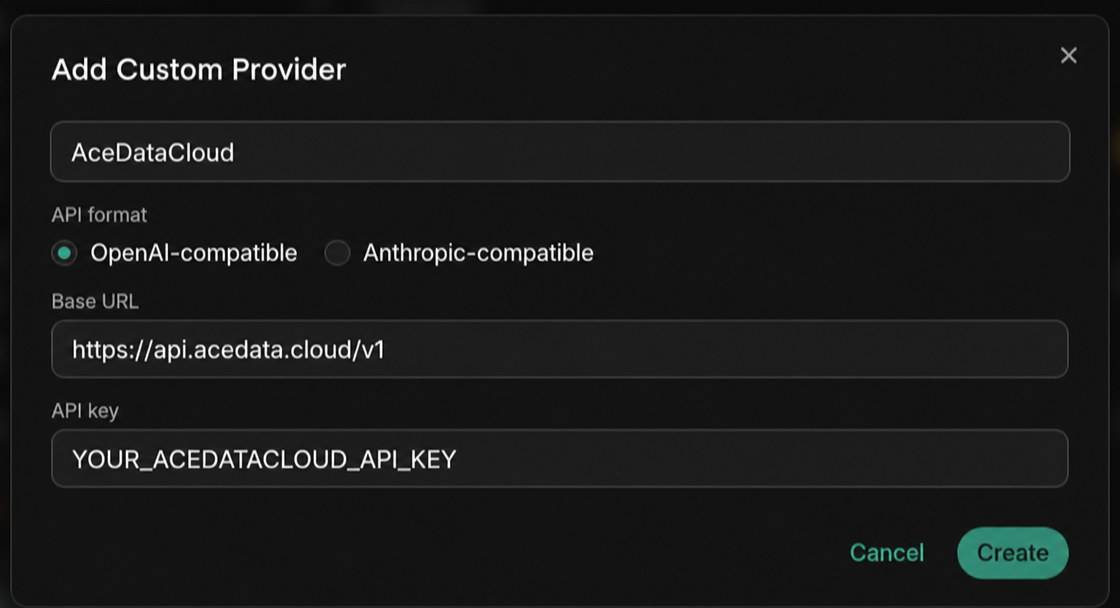
After saving the custom Provider, Jan will first attempt to call {Base URL}/models to retrieve the model list. If the current version or endpoint does not return an available list, click + Add Model below on the same editing page to manually enter the model ID. After adding it, the model will appear in the dropdown in the upper-left corner, with a "Cloud" icon to distinguish remote / local models.
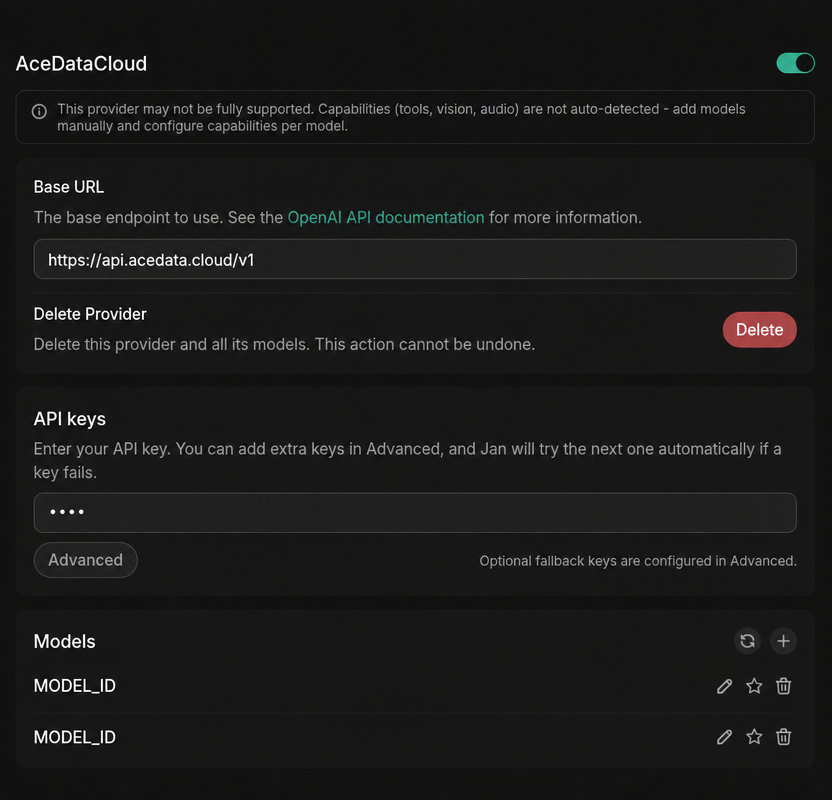
MODEL_IDis a placeholder; please go to the model catalog to view and replace it with the target model name; for precise verification, use theidvalue in the/v1/modelsresponse. This value is the model name used by the APImodelparameter, not the UUID of the service or API.
¶ Select a Model
The model catalog is continuously updated. Prioritize using the model list automatically loaded by the client; when manual entry is needed, first request GET https://api.ace.324567.xyz/v1/models, copy the id value of the target model from the response's data array, and then select according to the context, image, and tool-calling capabilities supported by the client.
¶ Verify the Integration
If you are unsure whether the issue is with Jan or the network, you can first use curl to directly verify the endpoint (replace {token} with your Token):
curl -X POST 'https://api.ace.324567.xyz/v1/chat/completions' \
  -H 'Authorization: Bearer {token}' \
  -H 'Content-Type: application/json' \
  -d '{
    "model": "MODEL_ID",
    "messages": [{"role": "user", "content": "ping"}]
  }'
Returning an OpenAI-compatible chat.completion object indicates that both the Token and endpoint are ready; if HTTP 403 used_up is returned, it indicates that the Token is valid but the balance is insufficient. Go to the console to top up.
¶ Advanced: Local + Cloud Hybrid
Jan includes an optional local OpenAI-compatible API Server (Settings → Local API Server). When enabled, it listens on http://localhost:1337/v1/chat/completions and runs the local models you have downloaded. This allows you to point the Base URL to the local server for free debugging in frameworks such as LangChain / LlamaIndex, then switch to 胖狐中转 remote models for complex tasks. Conversation context will not be lost when switching models.
¶ Frequently Asked Questions
¶ Connection error or 404
Usually, the Base URL is missing /v1. Change it to https://api.ace.324567.xyz/v1 (it must end with /v1, and do not write it as .../openai/v1).
¶ 401 Unauthorized
Please confirm that the API Key contains the 胖狐中转 Token (without the Bearer prefix and without extra spaces), and that the associated application has sufficient balance.
¶ Remote models do not appear in the dropdown
First click the model refresh button to trigger /v1/models; if automatic discovery fails, manually use + Add Model and add the model id value from the catalog exactly as it is.
¶ Can images be uploaded for model analysis
Yes, but you need to select a model that explicitly supports visual input from the current model catalog.